How to prepare a computer before assigning it to a new employee
Preparing a computer for a new employee involves more than installing the operating system and required applications. It also includes applying security policies, configuring user access, enrolling the device in endpoint management, and assigning it to the appropriate user. A properly provisioned device enables employees to start work without delays while allowing IT teams to manage, secure, and monitor endpoints throughout their lifecycle. Below are the key steps to complete before issuing a computer to a new employee.
Data dodania: 13/08/2026
Autor: Aneta Karcz
Udostępnij na:
Administrator IT przygotowujący komputer do wydania nowemu pracownikowi
What does preparing a computer for a new employee involve?
Preparing a computer for a new employee means configuring the device so that it supports secure and efficient work from day one. The endpoint must provide access to the required applications, support day-to-day productivity, and minimize the risk of downtime, whether the employee works from the office or remotely.
For remote employees, the computer becomes their primary point of access to the company’s digital environment. It is used to communicate with colleagues, run business applications, create documents, and access corporate resources. An unstable or incorrectly configured device can quickly disrupt not only the employee’s work but also the performance of the wider team.
Before issuing the computer, the IT team should complete several key tasks:
configure the operating system and user account,
install the required business applications and productivity tools,
secure the device in line with company policies,
verify that the hardware and its components are functioning correctly,
assign the computer to the employee and update its records in the system used for hardware and software inventory management.
A properly provisioned computer enables the employee to start work immediately. It also gives the IT team greater control over company-owned devices, supports faster device identification, and helps maintain accurate, up-to-date records of IT assets.
How to prepare a computer for an employee step by step
The process of preparing a computer for an employee should be divided into several stages. This ensures that the user receives a fully configured, ready-to-use device, while the IT team can verify that it meets the organization’s security, performance, and compliance requirements.
Configure the operating system and security controls
The first step is to prepare the operating system and apply the required security controls. The computer should have the latest updates installed, disk encryption enabled, the firewall configured, and endpoint protection deployed in line with company policies. At this stage, the IT team should also enable remote device management.
Install applications and configure the work environment
The next stage is to install the tools required for the employee’s day-to-day responsibilities. In addition to business applications, the IT team should configure the user account, access permissions, and relevant settings so that the employee can use company systems from their first day.
Configure secure access
The computer should provide convenient but controlled access to corporate resources. This may include configuring a VPN, multi-factor authentication, a password manager, and managed work profiles. Security controls should protect company data without creating unnecessary friction in everyday work.
Perform final checks before issuing the device
Before the computer is issued, the IT team should verify that all components and services are working correctly. Testing the device, confirming that updates have been applied, and validating access to corporate systems help reduce the risk of technical issues after the employee starts work.
Computer provisioning checklist for new employees
Stage
Required task
What should be verified?
Can it be automated?
Operating system
Update and configure the operating system
OS version, drivers, and security updates
Yes
User account
Create the user account and assign permissions
User details and access rights
Yes
Software
Install required applications
Application functionality and software licences
Yes
Security
Configure disk encryption, firewall, and endpoint protection
Compliance with the organization’s security policies
Yes
Remote access
Configure VPN and multi-factor authentication (MFA)
Access to corporate resources
Yes
Device validation
Test hardware and installed applications
Network connectivity, camera, microphone, and peripheral devices
Partially
Asset inventory
Assign the device to the user
Serial number, device configuration, and assigned location
Yes
How to automate computer provisioning for employees
Computer provisioning can be automated using remote device management tools and standardized deployment workflows. This allows IT teams to configure hardware, apply security controls, and provide access to business applications without repeating the same manual steps for every new device. Automation is particularly valuable in organizations that support distributed or remote workforces.
Administrators can remotely deploy updates, configure applications, restore settings, and troubleshoot issues without requiring physical access to the device. It is equally important to establish recovery procedures so that a standard configuration can be restored quickly and access to essential data can be reinstated after a failure. This helps employees return to work sooner while reducing the amount of time IT teams spend on repetitive manual tasks.
Jak przygotować komputer do wydania pracownikowi
ITManager support for employee computer provisioning
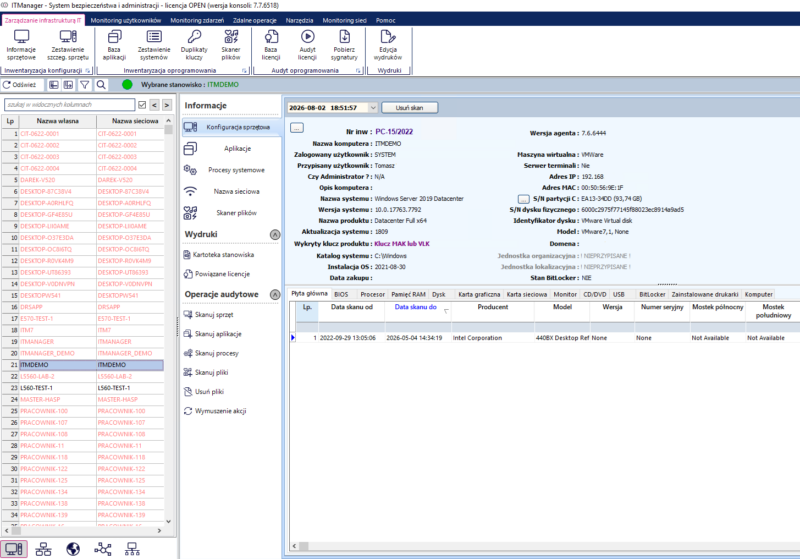
Preparing a computer for a new employee does not have to involve repeating the same manual tasks for every device. ITManager supports IT teams throughout the entire process, from device configuration and asset registration to ongoing endpoint management and remote user support. This enables administrators to set up workstations faster, maintain control over company-owned assets, and respond more efficiently to technical issues.
Key system capabilities include:
automated hardware and software inventory with configuration change tracking,
remote management and automation of administrative tasks, including computer configuration, software updates, and remote user support,
software licence management with compliance monitoring and application legality audits,
a Service Desk module that streamlines ticket handling and structures IT operations in line with ITIL best practices,
centralized management of assets, permissions, and processes related to employee onboarding,
security capabilities such as activity monitoring, network scanning, and encrypted internal communication.
This approach reduces repetitive manual work, shortens device provisioning time, and gives IT teams full visibility and control over the organization’s infrastructure, regardless of the number of users or the working model.
Looking to streamline computer provisioning for new employees and automate day-to-day IT operations? Explore ITManager and see how it can support infrastructure management across your organization.
FAQ – preparing a computer for a new employee
Have additional questions? Below are answers to the most common ones.
How long does it take to prepare a computer for a new employee?
The time required depends on the scope of the configuration. However, automation can significantly reduce the provisioning process.
Can the preparation of multiple computers be automated?
Yes. Endpoint management and device provisioning tools allow administrators to remotely configure devices and deploy software at scale.
What should be checked before issuing a computer?
Verify the system configuration, security settings, and the user’s access to corporate applications and resources before the device is assigned.
Why is it important to maintain an IT asset inventory?
Maintaining an accurate asset inventory simplifies device management, software licence tracking, and hardware lifecycle planning while improving visibility across the IT environment.
If you have any questions or want to see how the system will work for your company, take advantage of our free consultation.
30 days test period full functionality technical assistance own test environment automatic installer.